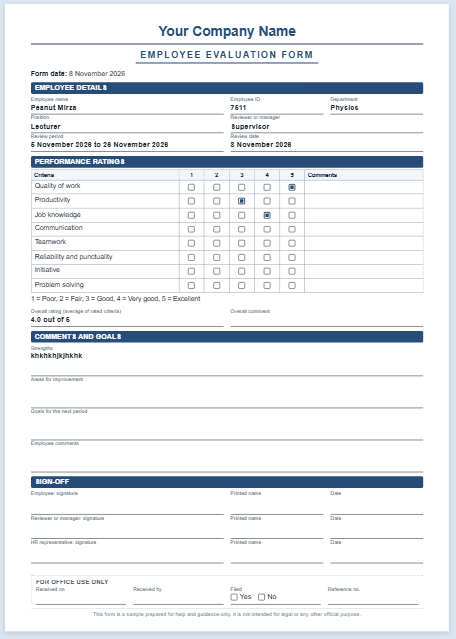
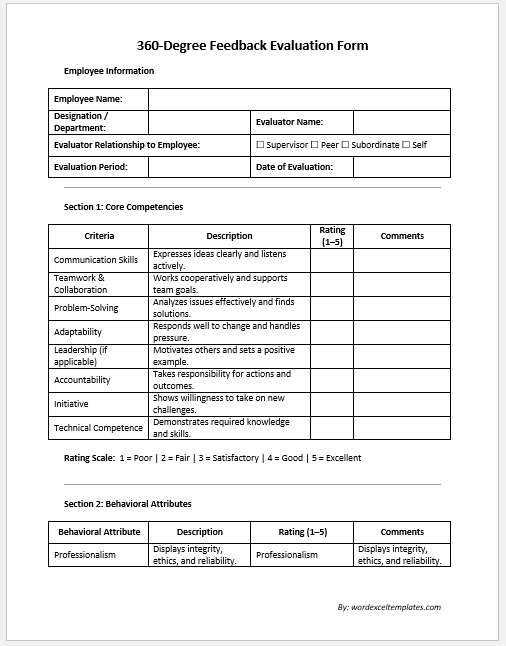
An employee probation evaluation provides a structured way to review an employee’s performance during the probationary period. It helps managers document performance across areas such as quality of work, productivity, job knowledge, attendance, communication, teamwork, initiative, adaptability, service, and professionalism, while also recording strengths, improvement areas, achievements, and development needs.
Probation Evaluation Generator
Rate the employee, record goals and feedback, and get a signed-off evaluation with a clear recommendation.
Employee & Review Details
Performance Ratings
Rate each area from 1 to 5: 5 Outstanding, 4 Exceeds expectations, 3 Meets expectations, 2 Below expectations, 1 Unsatisfactory. Leave a rating empty to skip an area. Weights decide how much each area counts.
Probation Goals
Decision
How to use this tool?
To use the Employee Probation Evaluation Generator, open the page and start on the Employee tab. Enter your company name, the employee’s name, ID, job title, department and line manager. Then add the joining date, the evaluation date and the probation start and end dates. The tool shows how many days the probation covers and which day the evaluation falls on.
Next, open the Ratings tab. Eight common areas are already listed, such as job knowledge, quality of work, communication and attendance. Give each area a rating from 1 to 5 and add a short comment. You can change the weights to show what matters most for the role, rename areas, add new ones or remove any you don’t need. Areas left unrated are skipped, and the overall score is worked out from the rest.
On the Goals & Feedback tab, list the goals set at the start of probation and mark each as achieved, partly achieved, not achieved or in progress. Then write the employee’s strengths, areas for improvement, and comments from the manager and the employee.
The Decision tab is where you choose to confirm employment, extend probation or not confirm. If you extend, pick the number of months and the new end date is calculated for you. Add the effective date, next steps, HR comments, and the names of the HR representative and approver.
Watch the preview on the right as you type. It updates instantly and shows the score, a performance band, the goals table and the decision. When it looks right, download the Excel file or print the form to PDF for signatures.