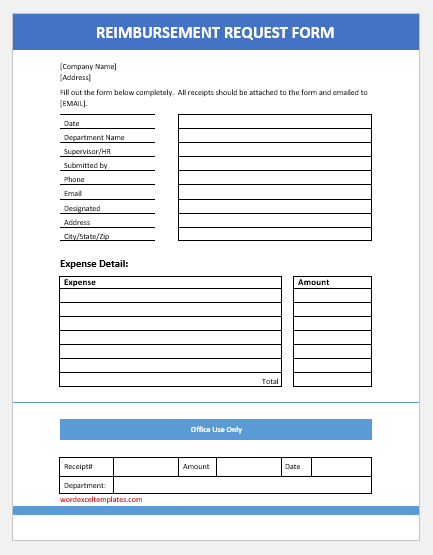
A Reimbursement Management Form helps employees document business-related expenses and provides an organized record for review, approval, reimbursement, or settlement of an advance. Depending on the reimbursement type, the form may include employee information, expense details, supporting references, totals, business purpose, and submission information.
The generator below provides access to multiple reimbursement form types through a single form selector. For the Employee Expense Reimbursement Form, individual expense items can be added with the date, category, description, receipt number, and amount. The generator automatically totals the entered expenses and compares the total with any advance already received.
When total expenses exceed the advance, the form shows the Amount to Reimburse Employee. When the advance exceeds the recorded expenses, it shows the Amount to Return to Company instead of displaying a negative reimbursement amount. Complete the relevant fields, review the Live Preview, and use Print / Save PDF to create a printable reimbursement record.
Using the Reimbursement Management Generator
Select the reimbursement form that matches the type of expense or claim you need to document. The available forms are loaded through the shared generator, so you can switch between reimbursement types without opening a separate tool. The plugin is designed to load valid reimbursement-form definitions from its /forms/ directory through the same interface.
For an employee expense claim, enter the employee information and then add each expense as a separate row. The expense table supports adding and removing rows and automatically recalculates totals when values change.
Enter any Advance Received so the generator can determine the remaining settlement. If expenses are higher than the advance, the difference is payable to the employee. If the advance is higher than the expenses, the excess is shown as an amount to return to the company.
Use Load Sample when you want to see an example of a completed form. Use Reset to return the current form to its default blank state. The Live Preview updates as information is entered and can be adjusted with Zoom−, Zoom+, and Fit before printing.
Printable Reimbursement Form Templates
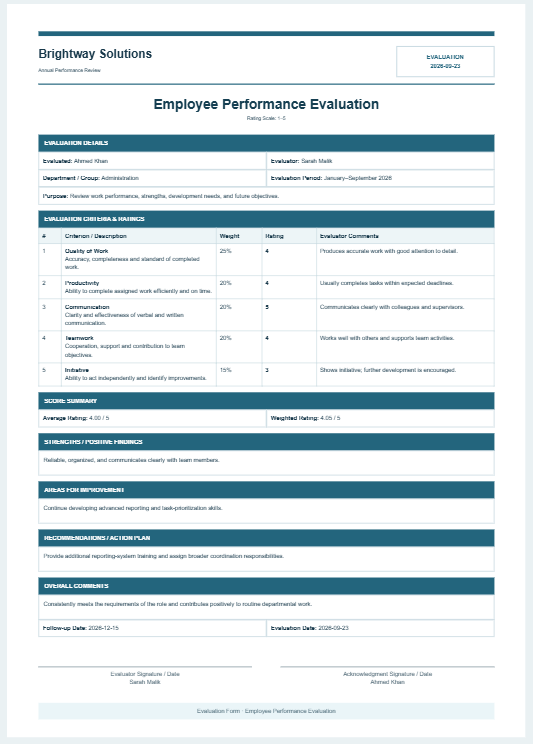
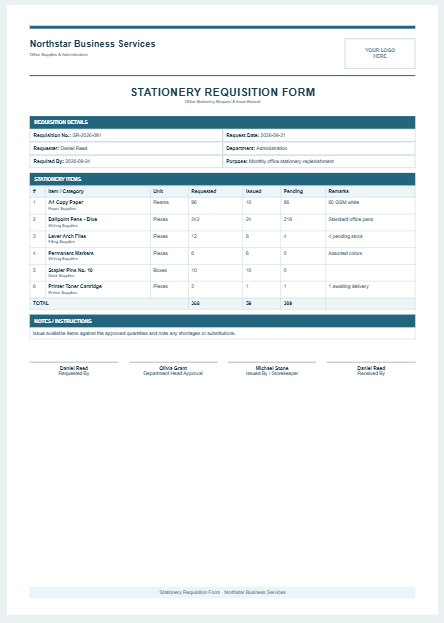
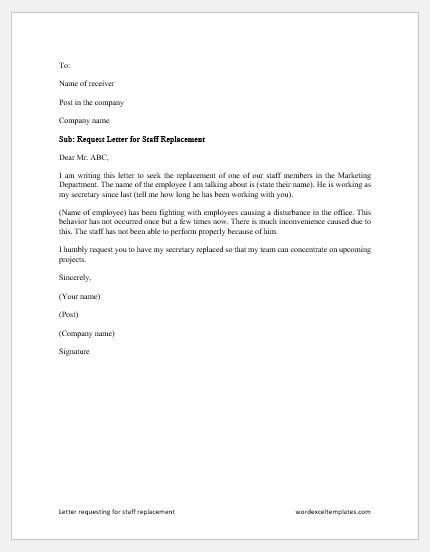
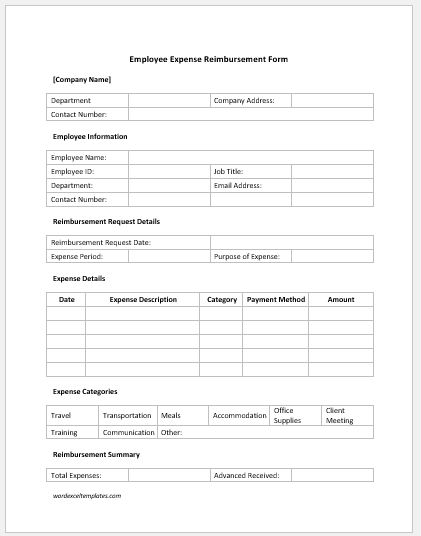
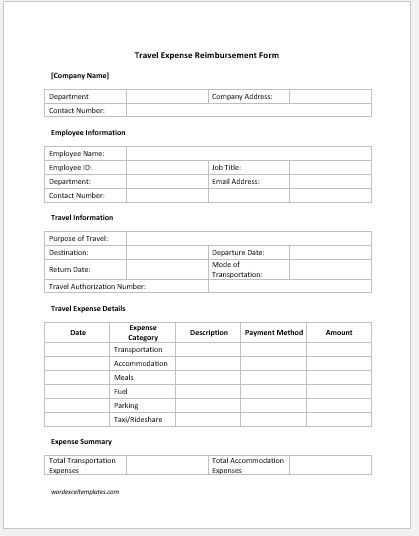
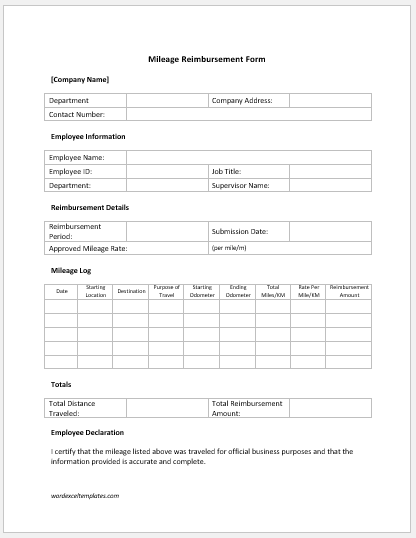
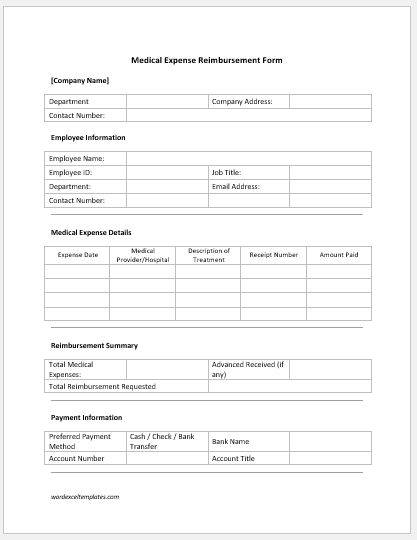
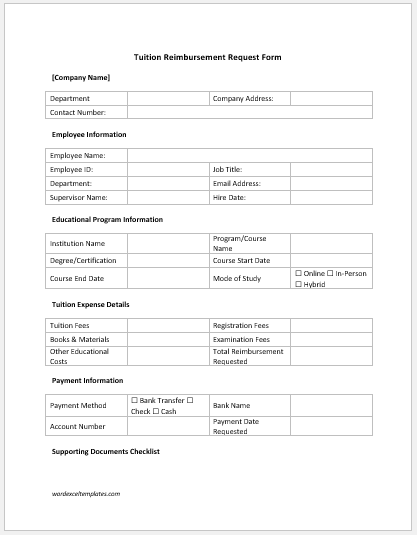
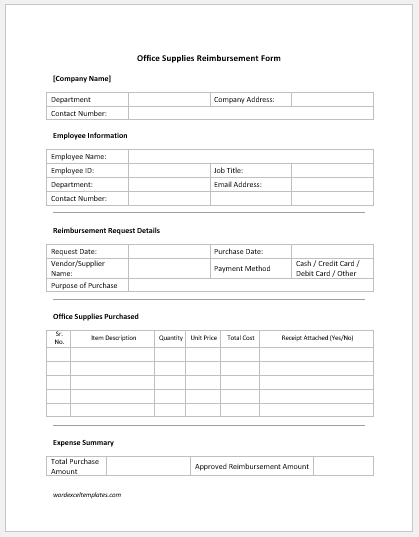
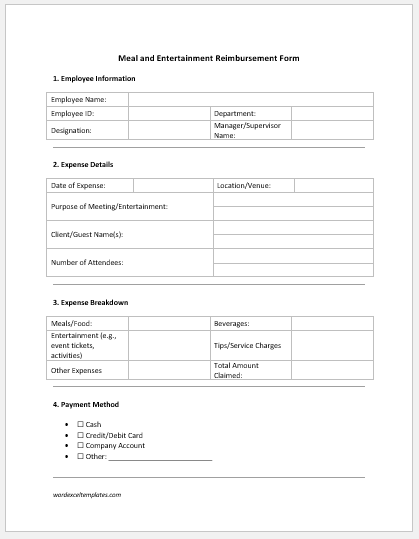
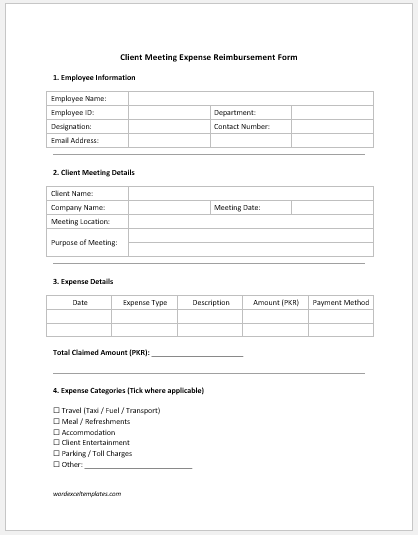
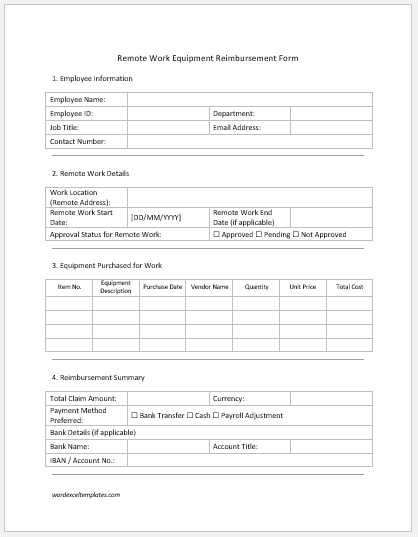
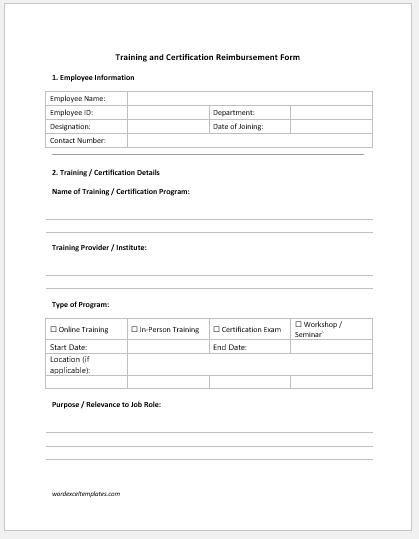
The downloadable reimbursement forms below provide document-based alternatives for different types of employee and business expenses. They can be useful when a company prefers an editable Word or Excel file, needs to circulate a form offline, or already uses a document-based approval process.
Choose the template that most closely matches the expense being documented. The downloadable files and the online generator may use different fields or layouts, so review the selected template before putting it into use.
#1
#2
#3
#4
#5
#6
#7
#8
#9
#10
What Should a Reimbursement Form Include?
A reimbursement form should identify who incurred the expense, what the expense was for, when it occurred, and how much was paid. Depending on the organization and reimbursement type, it may also include the employee ID, department, manager, expense category, receipt or reference number, business purpose, advance received, submission date, and approval information.
Each expense should be recorded clearly enough for the reviewer to understand what was purchased or paid for and why it relates to the reimbursement request.
Recording Expense Items
Enter expenses as separate line items rather than combining unrelated purchases into one amount. For each item, record the date, category, description, receipt or reference information when available, and the amount claimed.
The Employee Expense generator calculates the expense total from the Amount column automatically.
Descriptions should be specific enough to explain the expense. For example, “Taxi to client meeting” provides more useful context than a general entry such as “Travel.”
Advances and Final Settlement
Some employees receive an advance before travel, training, purchasing, or another business activity. The final reimbursement should therefore consider both the actual expenses and the advance already received.
If:
Total Expenses > Advance Received
the remaining difference is the Amount to Reimburse Employee.
If:
Advance Received > Total Expenses
the excess is the Amount to Return to Company.
If both amounts are equal, neither party has a remaining balance.
This separate presentation makes the settlement easier to understand than showing a negative reimbursement figure.
Receipts and Supporting Records
A receipt number or other reference can be recorded when one is available. The current Employee Expense form includes a Receipt Number column for individual expense rows.
Organizations may also require scanned receipts, invoices, tickets, approvals, or other supporting records outside the generated form. The generator itself should therefore be treated as the reimbursement record rather than proof that every expense has been independently verified.
Business Purpose
The Business Purpose field should briefly explain why the expenses were incurred. It can identify the meeting, trip, purchase, event, training activity, or other business reason connected with the claim.
A clear business-purpose statement can make the reimbursement easier to review because it provides context for the individual expense entries.
Reviewing the Form Before Submission
Before submitting or printing a reimbursement form, check that the employee information is correct, expense amounts match the available records, duplicate expenses have not been entered, and the advance amount is accurate.
Also confirm that the calculated reimbursement or amount to return is reasonable based on the figures entered. The generator performs arithmetic calculations from the supplied data but does not independently verify whether an expense is eligible under a particular employer’s reimbursement policy.
Reimbursement Policies
Reimbursement rules vary between organizations. A company may have its own requirements for eligible expenses, spending limits, receipts, travel classes, mileage rates, meal allowances, approval levels, submission deadlines, or tax treatment.
The forms on this page provide a structured way to record reimbursement information, but they do not replace an employer’s expense policy or accounting procedures.
Printing and Saving the Form
The Live Preview is formatted for an A4 reimbursement document. Use Print / Save PDF to open the browser’s print interface, where the completed form can be printed or saved as a PDF.
The generator uses an isolated print view so the reimbursement document is printed without the surrounding website interface. The existing JavaScript creates this separate print document from the Live Preview.