A Luggage Tag Generator helps create a personalized tag that can be attached to a suitcase, travel bag, backpack, or other luggage. A tag can display basic contact or travel information so a bag is easier to identify and return if it is misplaced.
The generator below lets you enter traveler details, optional emergency information, destination and travel references, bag information, and notes. You can also choose the tag size, vertical or horizontal layout, design style, colors, duplicate quantity, optional logo, and whether specific details should appear on the tag.
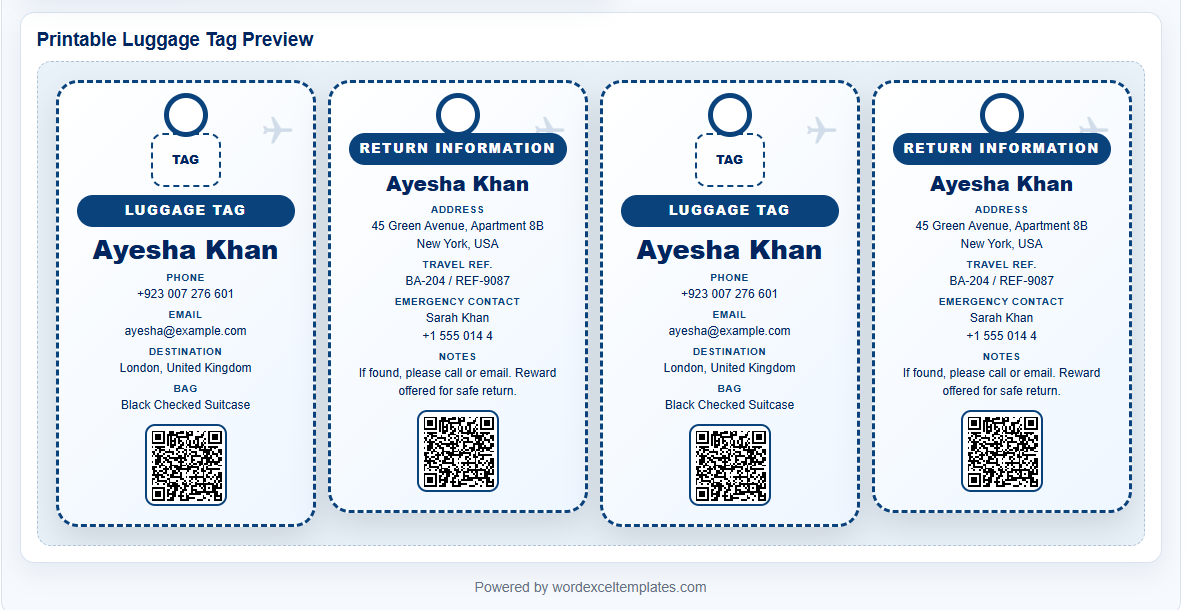
The Live Preview shows the front and back of the luggage tag and updates automatically as you make changes. You can also add an optional QR code containing selected contact or travel information, print the tags or save them as a PDF, and download the finished design as a PNG image. Review the information you choose to display before printing, especially personal contact, address, emergency, or travel details.
Frequently Asked Questions
What information should I put on a luggage tag?
A luggage tag usually needs enough information to identify the owner and provide a way to make contact if the bag is found. A name and phone number may be sufficient for many travelers. You can optionally include an email address, destination, travel reference, bag description, emergency contact, or return instructions.
Should I put my full home address on a luggage tag?
A full home address is optional. Consider whether you need to display it publicly on the outside of your luggage. You may prefer to use a phone number, email address, or a less specific location instead. The generator lets you decide whether the address appears on the tag.
What information can the QR code contain?
The optional QR code can contain contact details, travel details, or all tag details, depending on the option you select. Because someone scanning the code may be able to view that information, include only details you are comfortable making accessible.
Does the QR code track my luggage?
No. The QR code stores the information selected for the tag. It does not provide GPS tracking, live location, airline baggage-system integration, or secure identity verification.
Can I create front-and-back luggage tags?
Yes. The generator creates a front side for the main identification details and a back side for return information and other optional details. Both sides are shown together in the Live Preview.
Can I print multiple copies of the same luggage tag?
Yes. Use the Duplicate Tags setting to prepare multiple copies using the same information. This is useful when traveling with several bags or when you want spare tags.
Can I save the luggage tag as a PDF or PNG?
Yes. Use Print / Save PDF to open the browser print dialog, where you can print the tags or choose the browser's PDF saving option. You can also use Download PNG to save the generated tag design as an image.
Can I upload a logo to the luggage tag?
Yes. The generator includes an optional logo or icon upload. The uploaded image is used in the tag preview so you can personalize the design before printing or exporting it.
Using the Luggage Tag Generator
Enter the name and phone number you want shown on the tag, then add any optional contact or travel details that are useful for identifying the luggage. The display controls let you decide whether information such as email, address, destination, emergency contact, notes, or a QR code should appear.
Choose the required tag size, layout, and design style, then adjust the background, text, and accent colors if needed. The Live Preview shows the front and return-information sides together so you can review the design before printing.
Use Load Sample to see an example. Use Reset to return the generator to a blank tag.
Printable Luggage Tag Templates
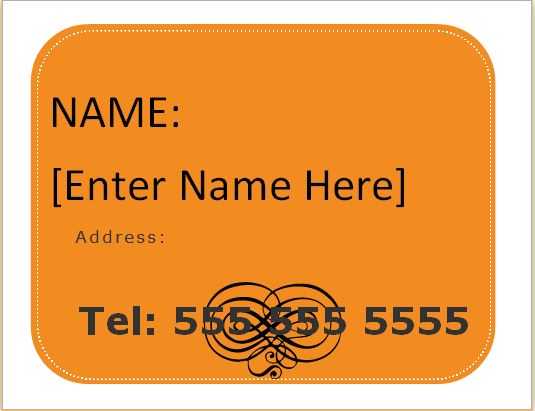
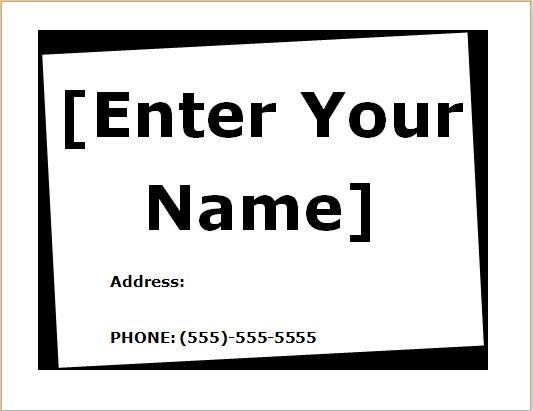
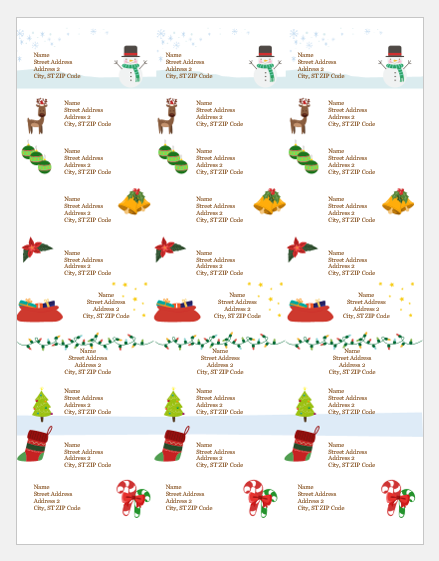
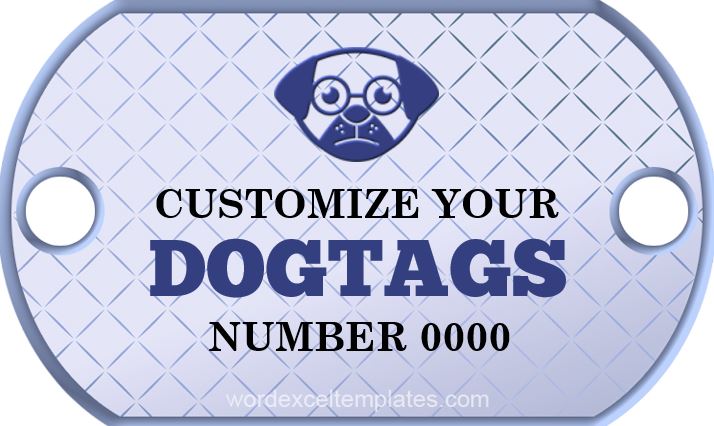
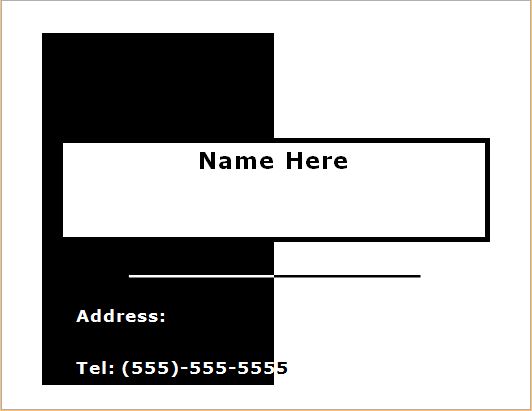
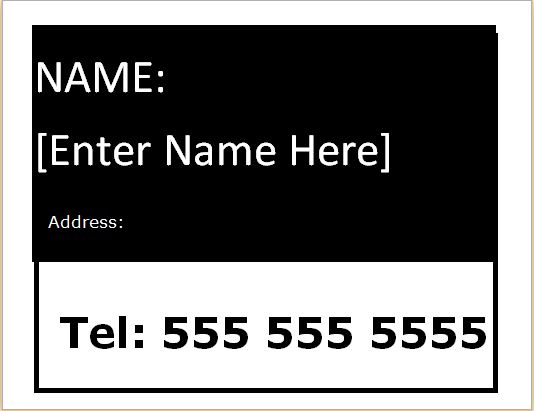
The downloadable luggage tag templates below provide an alternative for users who prefer to edit and print tags in Microsoft Word. They can be useful when you want an offline document, need to make additional layout changes, or prefer to prepare several tags manually.
The Word templates and the online generator may use different designs and fields. Review the selected template and replace all sample information before printing or attaching it to luggage.
What Information Should Be Included on a Luggage Tag?
A luggage tag usually needs enough information to help identify the owner or provide a way to make contact if the bag is found. A name and phone number may be sufficient for many travelers.
Optional information can include an email address, destination, travel reference, bag description, emergency contact, or brief return instructions. The appropriate amount of information depends on how and where the tag will be used.
Avoid adding information simply because a field is available. Consider whether each detail needs to be publicly visible on the outside of the luggage.
Using Contact and Address Information
The generator allows email and home-address information to be displayed, but these fields are optional. Some travelers may prefer to use only a phone number or email address rather than placing a complete home address on an externally visible tag.
If an address is included, review whether a full street address is necessary or whether a city, region, or other less specific location is sufficient for your purpose.
The generator leaves these more sensitive display options off by default so you can choose deliberately which information to include.
Using the QR Code
The optional QR code can contain contact details, travel details, or all tag details, depending on the selected setting. A person scanning the code may therefore be able to view information that is not immediately visible as printed text.
Before enabling the QR code, review the selected QR content and include only information you are comfortable making accessible to someone who finds or handles the luggage.
The QR code is intended as a convenient information carrier. It does not provide tracking, GPS location, airline baggage-system integration, or secure identity verification.
Choosing a Tag Size and Layout
The generator supports Small, Standard, and Large tag sizes together with Vertical and Horizontal layouts.
A smaller tag may be suitable when only basic identification details are required. Larger tags provide more room for additional information or design elements.
The best choice also depends on how the tag will be printed, cut, protected, and attached to the luggage. Check the printed size before producing multiple copies.
Front and Back of the Tag
The front of the generated tag emphasizes the traveler name and basic identification details. The back can display return information and other optional details such as the address, travel reference, emergency contact, or notes.
Review both sides in the Live Preview before printing. The Show options can be used to remove information that is unnecessary for a particular trip.
Printing Multiple Luggage Tags
The Duplicate Tags setting lets you prepare multiple copies from the same information. This can be useful when traveling with several bags or when you want replacement tags.
The printed A4 output arranges the generated tags for printing. After printing, cut the tags carefully and use a suitable holder, laminate, sleeve, or other protective method if they will be exposed to handling or weather.
Review Before Traveling
Check the phone number, email address, destination, travel reference, and emergency information before using the tag. Remove outdated trip information after travel if the tag will be reused.
A luggage tag can assist with identification and return, but it does not guarantee recovery of lost baggage and should not replace airline baggage labels, tracking devices, or other travel procedures where those are required.